
Automated batch testing
Automated batch testing helps you validate multiple business scenarios before launching an assistant or after changing its configuration. You can organize high-frequency questions, exception flows, edge cases, and historical failed conversations into test cases, then run and review them through test sets.
Compared with one-off text/voice testing, automated batch testing is better suited for larger scenario coverage. It helps confirm that after you update prompts, knowledge bases, workflows, or tool settings, the assistant can still answer, follow up, transfer to a human, and call tools as expected.
Before You Start
- You have created and saved an assistant.
- You have completed the related prompt, knowledge base, workflow, or tool configuration.
- You have prepared the business scenarios or historical failed cases that need to be verified.
- You have defined the judging criteria for each test case.
- If you need to test tool calling, you have configured real tools or prepared Mock settings.
Workflow
The main workflow is: create a test set → create test cases → run tests → review test results.
Create a Test Set
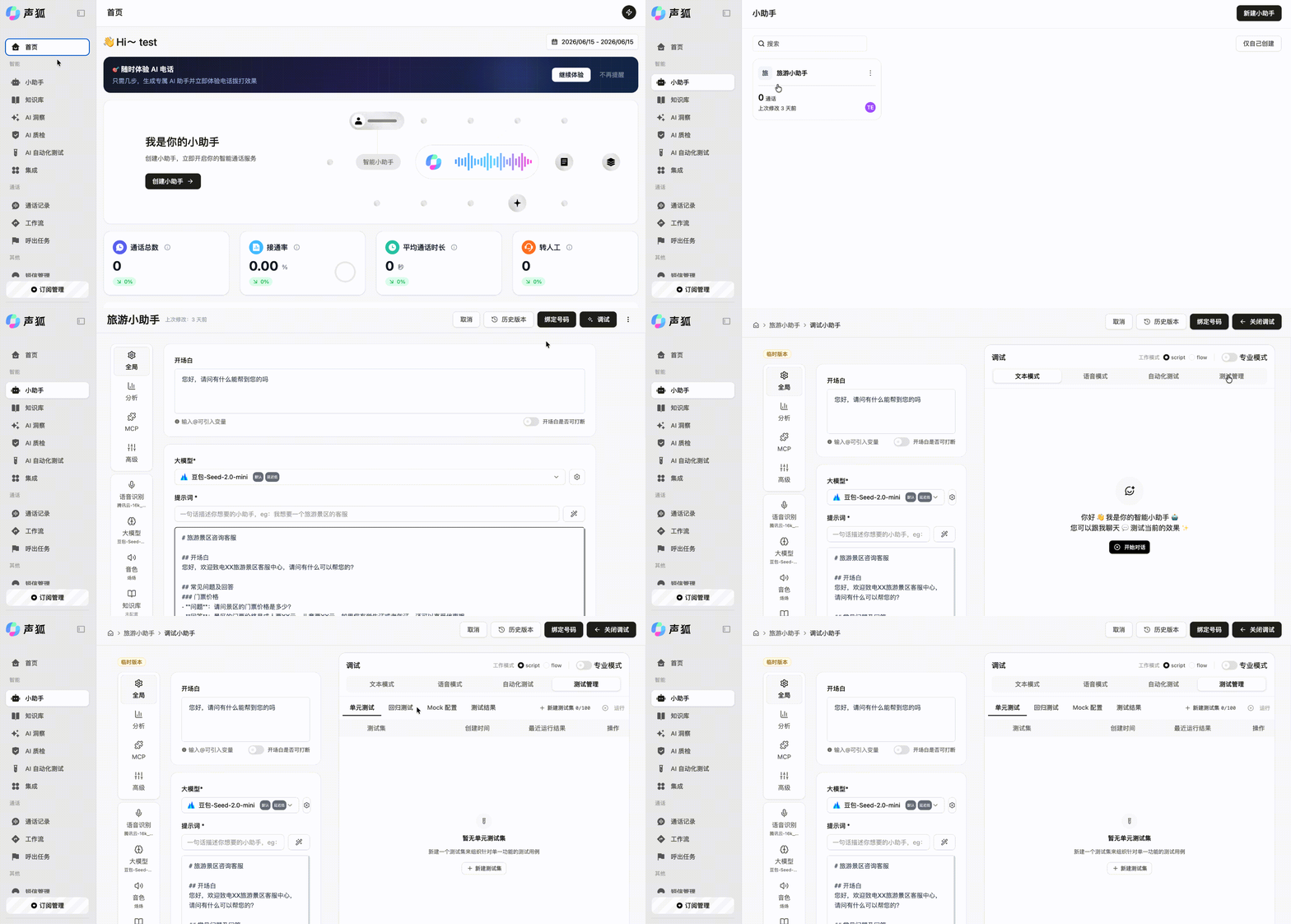
Path: Assistant → Assistant configuration page → Debug → Test management.
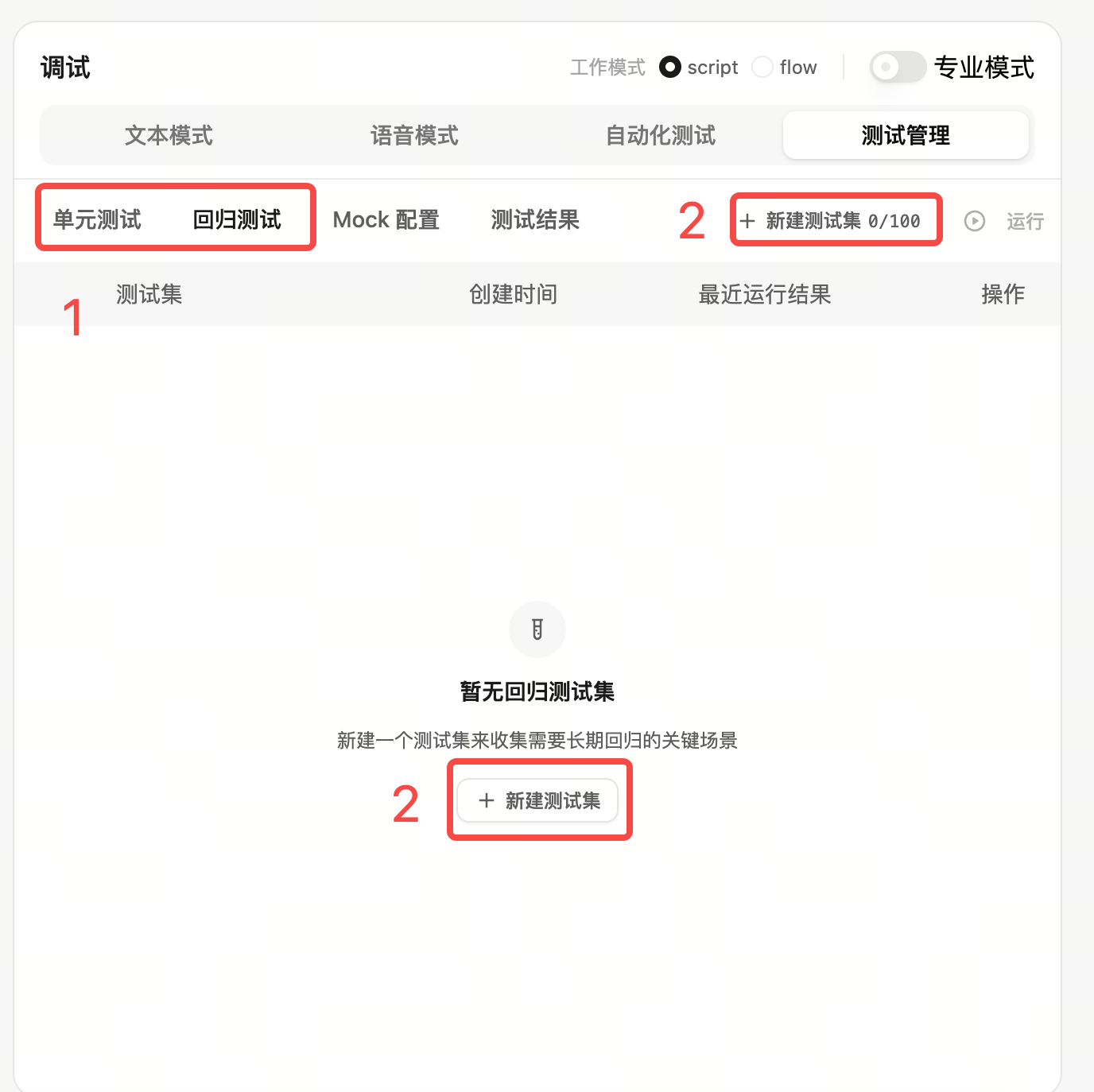
After entering Test management, select the test type based on your testing goal, then click New test set in the upper-right corner. If there is no test set yet, you can also click New test set from the empty state.
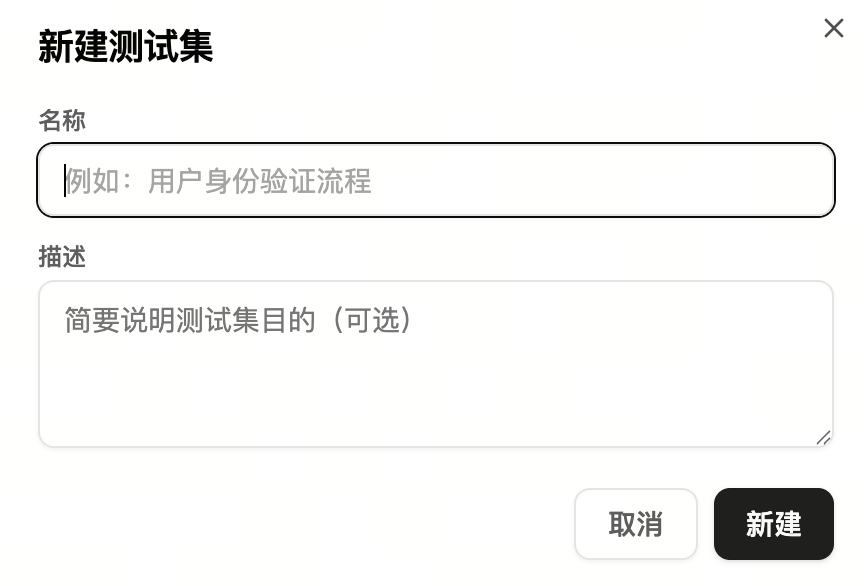
On the new test set page, fill in the test set information:
- Test set name: required. We recommend naming it after the testing goal, such as "Appointment flow test".
- Test set description: optional. You can describe the business scope, applicable version, or notes for this test set.
After filling in the information, click Create in the lower-right corner.
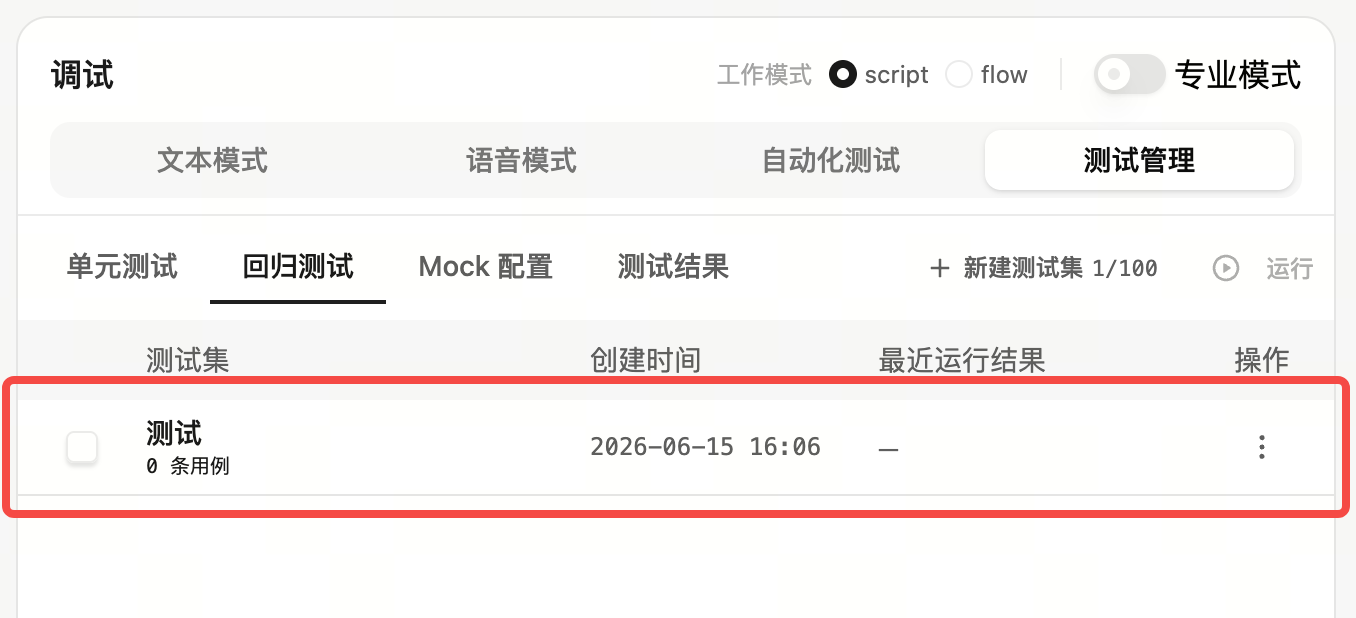
After the test set is created, it appears on the unit test or regression test page in Test management.
Create Test Cases
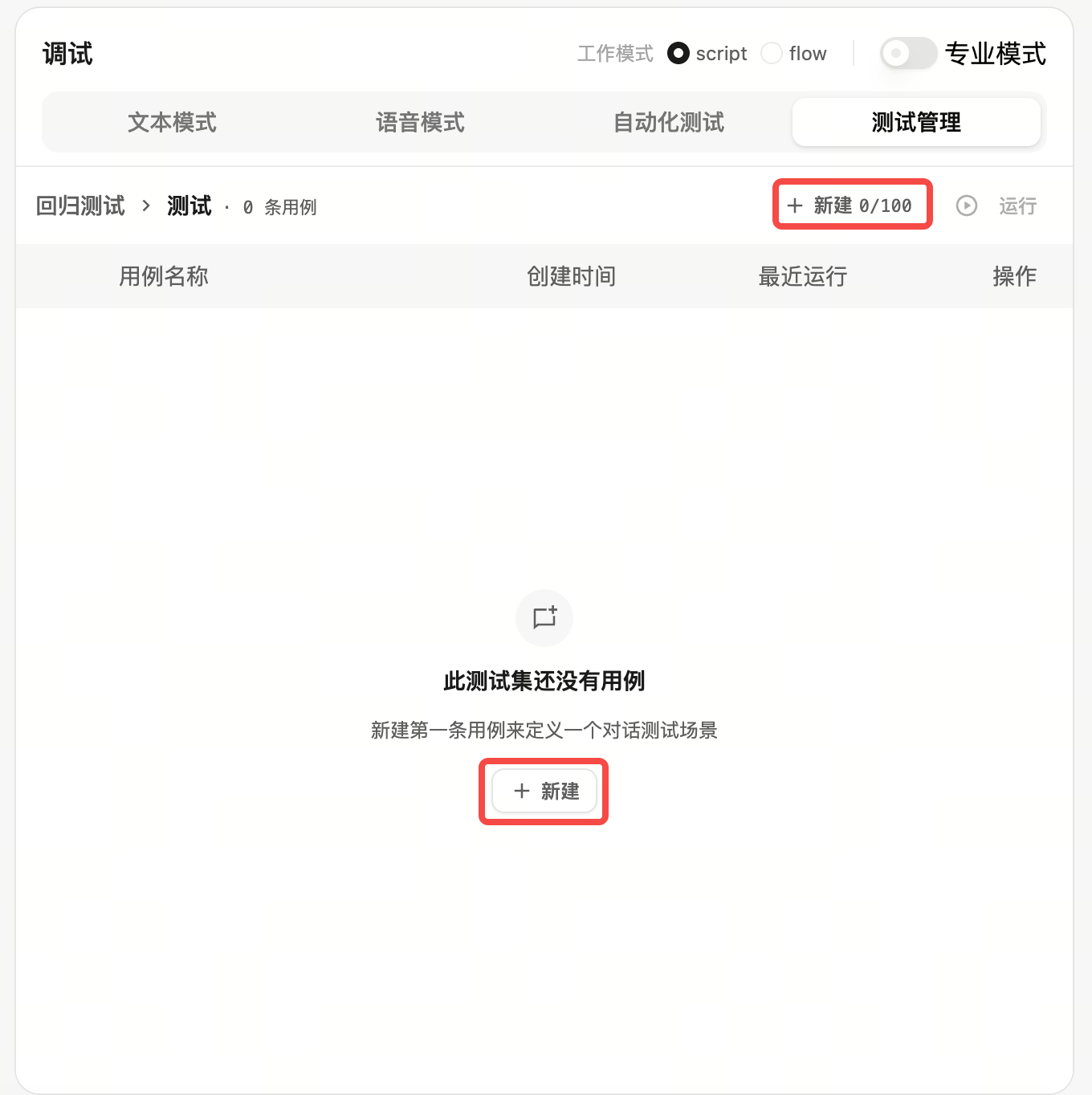
Click a target test set from the test set list to enter the test case management page. You can click New in the upper-right corner to create a test case. If there are no test cases in the test set yet, you can also click New from the empty state.
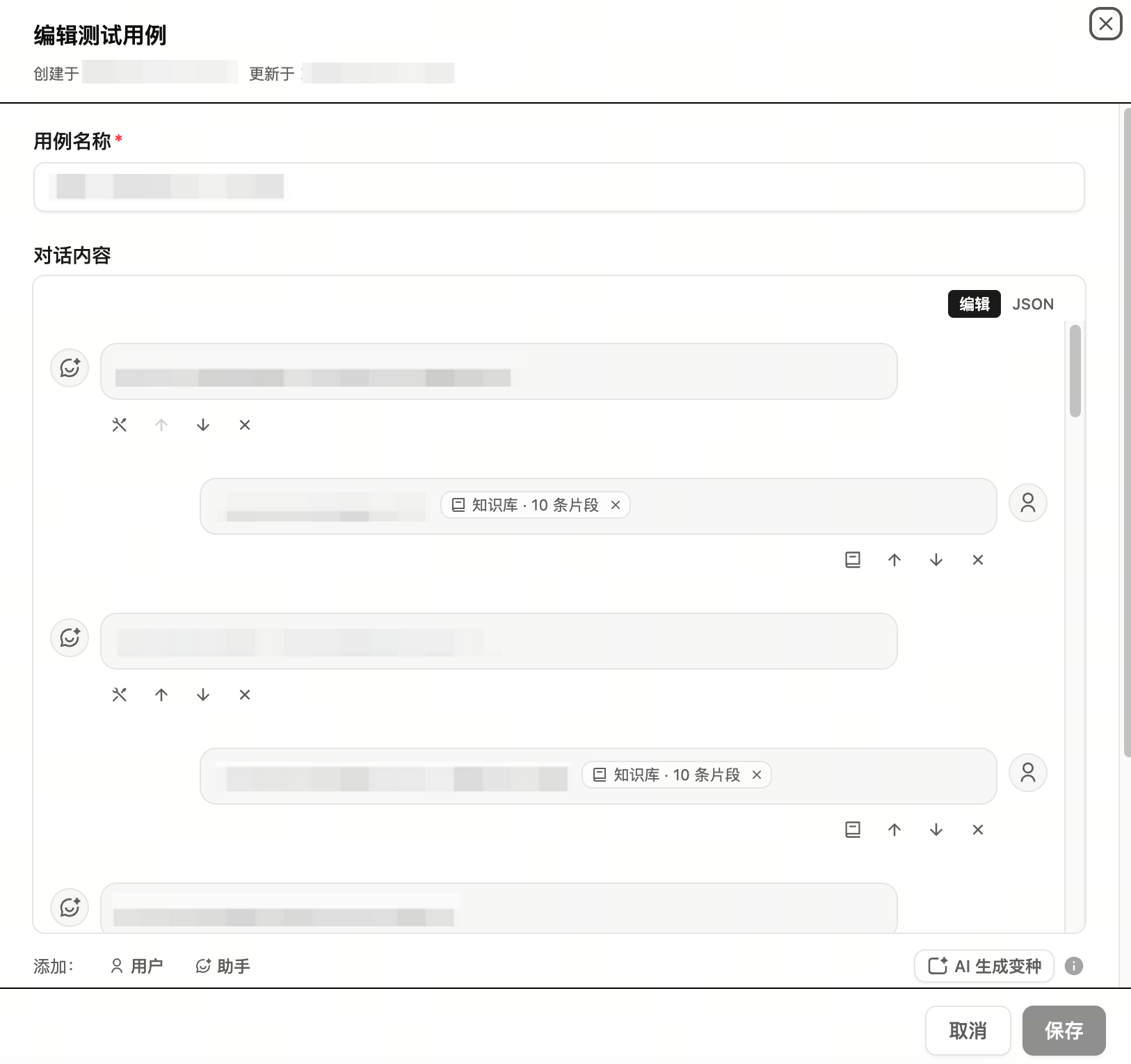
On the new test case page, edit the case name, conversation content, and judging criteria.
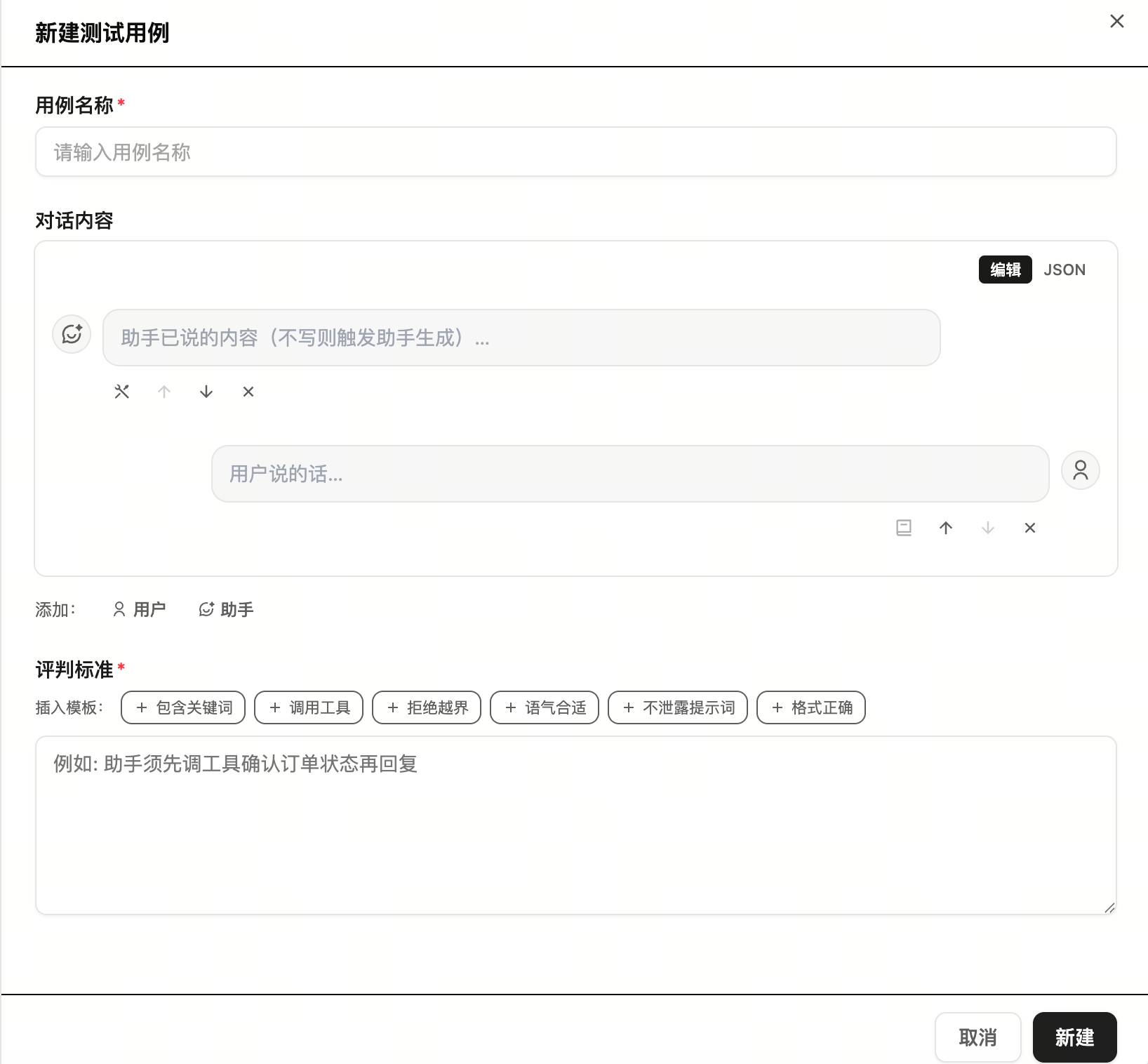
Case Name
The case name can be customized. We recommend naming it after the testing goal or scenario, such as "Appointment exception handling - Case 1".
Conversation Content
Conversation content supports three input methods:
- Manual input.
- Direct JSON import.
- Import from call logs.
Manual input
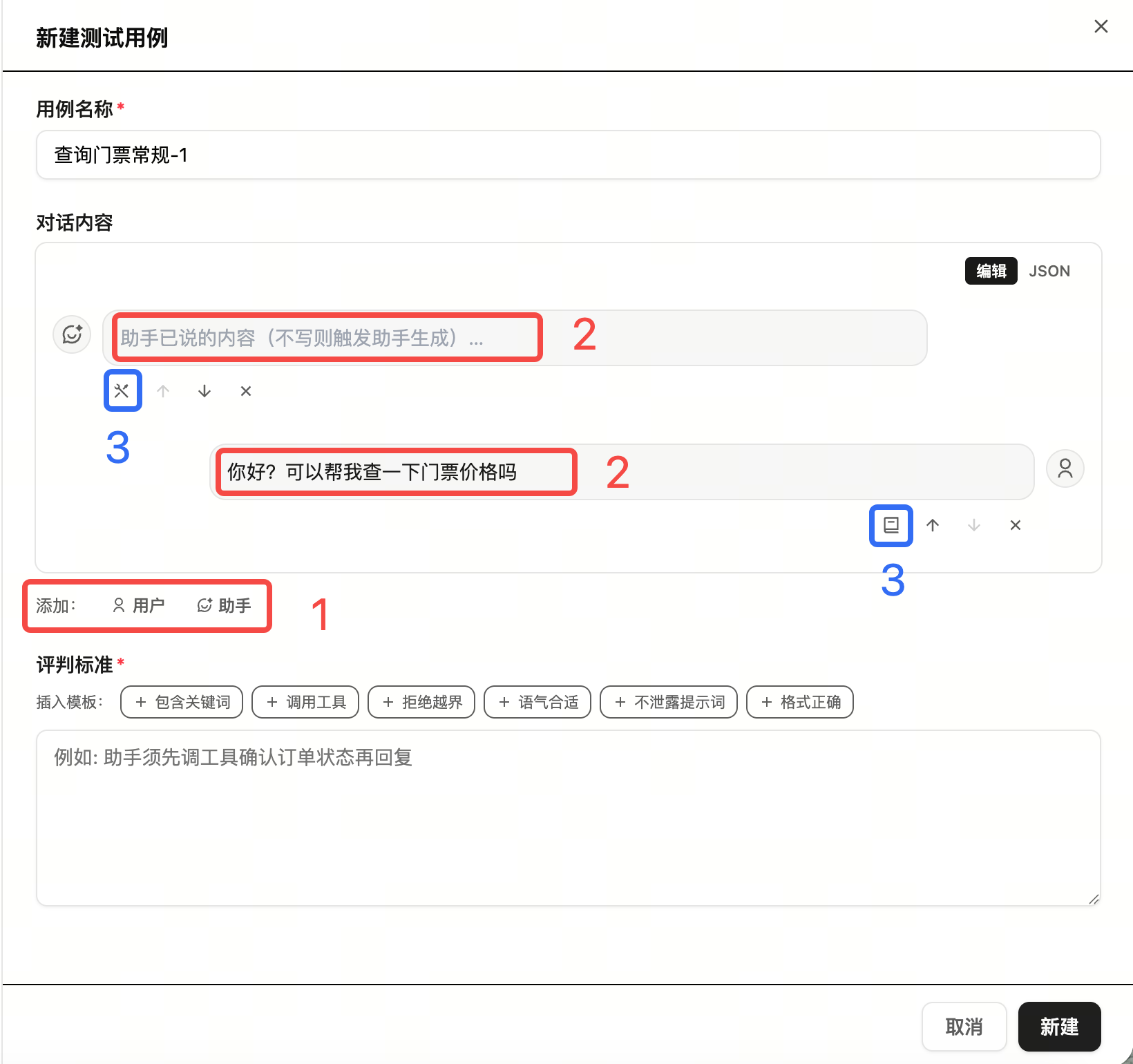
Click User or Assistant in the lower-left corner of the conversation content area to add turns in sequence. After a turn is added, it appears in the conversation content box. You can adjust the order with the arrow buttons below each chat box.
After creating a chat box, click it to enter the conversation text.
On the assistant side, you can click the Tool icon below the chat box to add model tools to be called, such as "query time" or "query business status". This helps test the assistant's tool-calling capability.
On the user side, you can click the Knowledge base icon below the chat box to configure the retrieval result from the knowledge bases bound to the current assistant for this conversation.
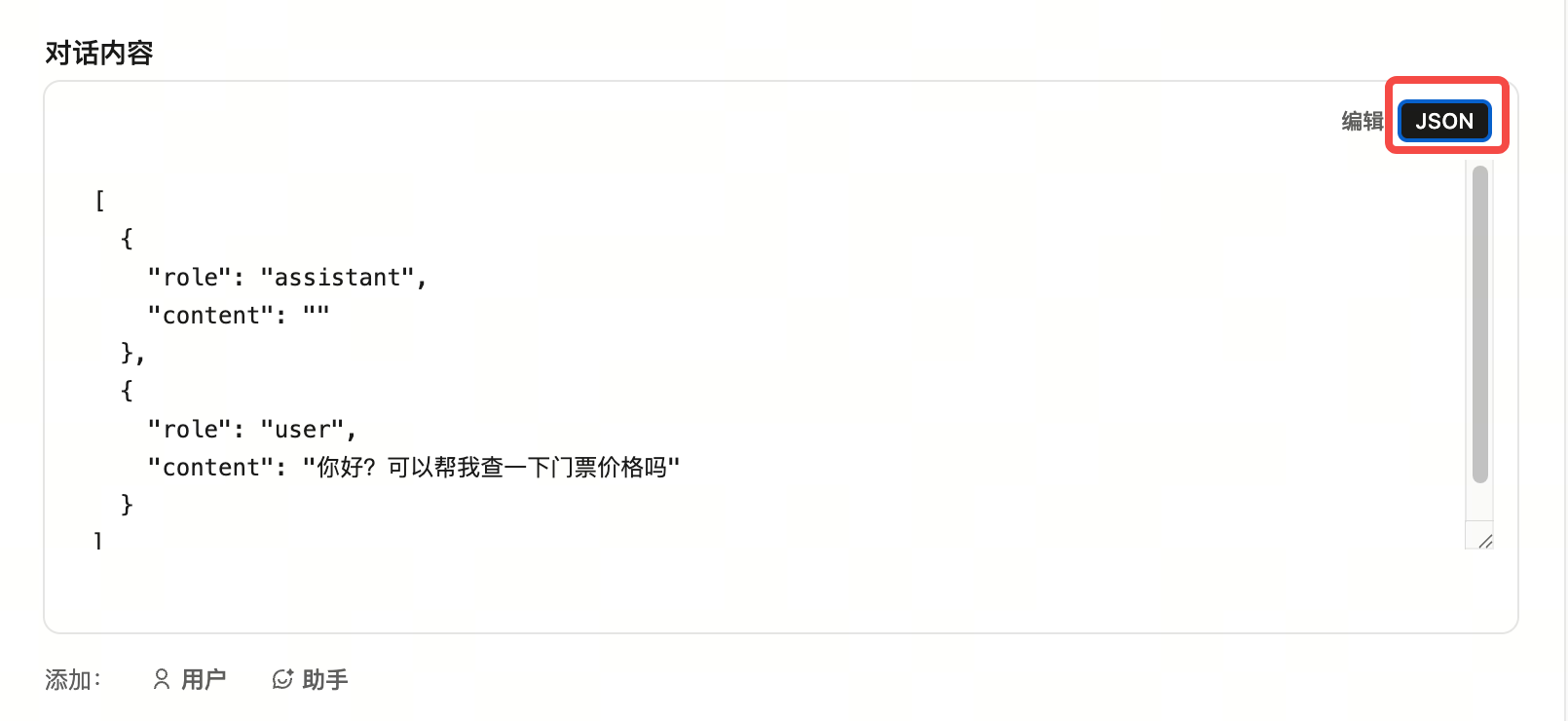
Direct JSON import
Click JSON in the upper-right corner of the conversation content box to enter JSON editing mode. You can paste JSON from a historical session to quickly create the conversation content for a test case.
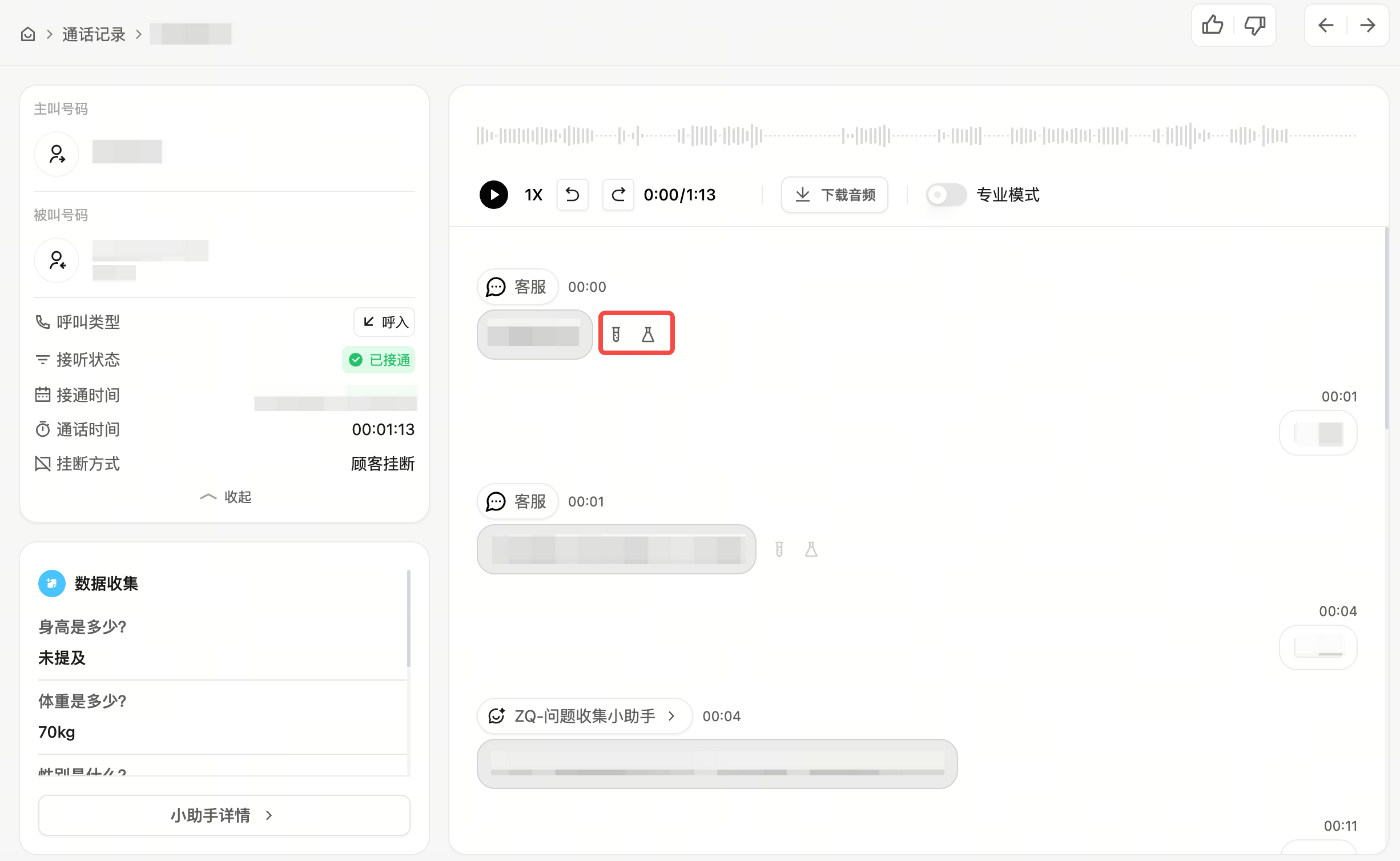
Import from call logs
In Call Logs, select a specific call and click the test-tube icon next to the chat bubble. The call log can then be imported into a test set as a test case.
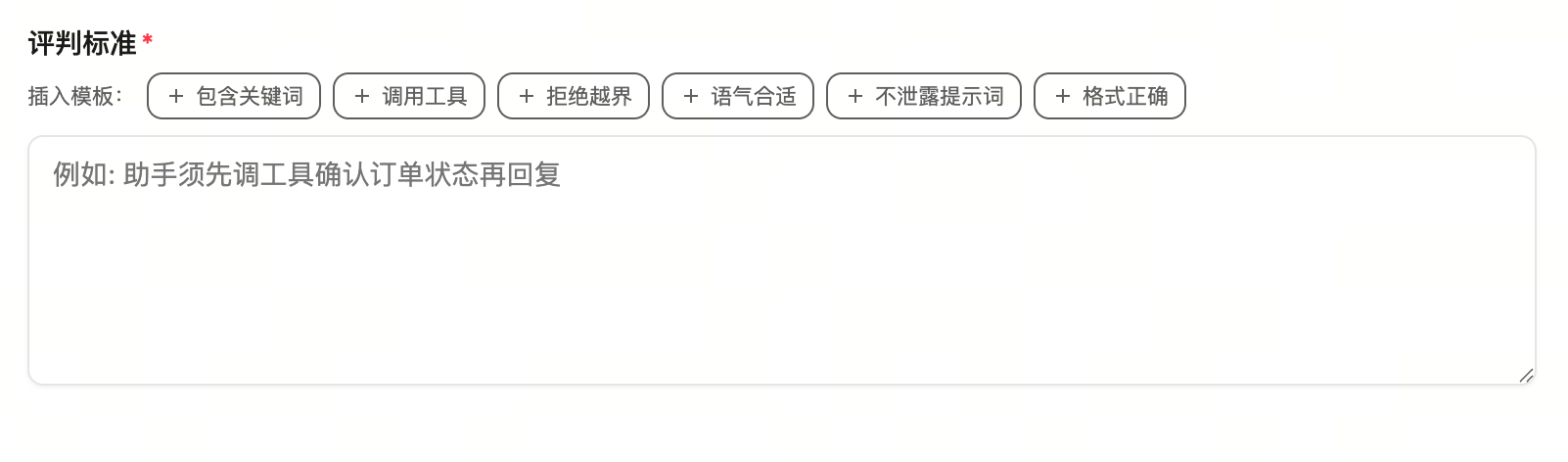
Judging Criteria
Judging criteria define the pass conditions for each test case. You can use the template shortcuts above the editor to quickly insert common judging criteria.
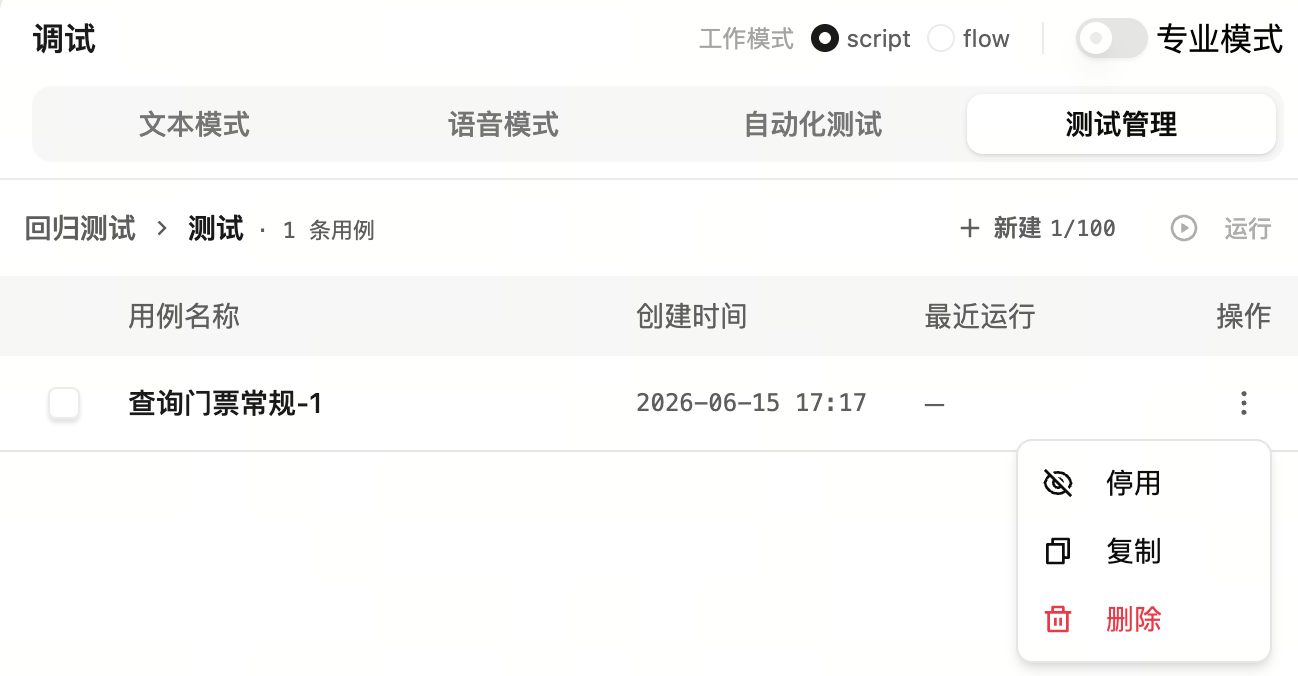
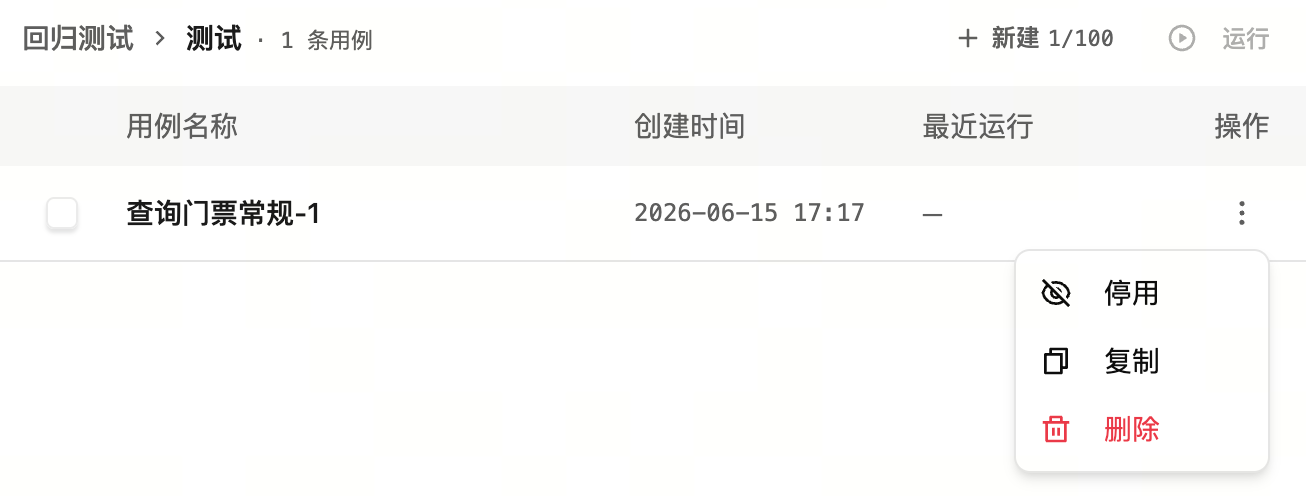
Manage Test Cases
After entering a test set, use the action buttons on the right side of each test case to disable/enable, copy, or delete it. Batch disable/enable, copy, and delete are not supported yet.
Edit Test Cases
Click a test case in a test set to enter the edit test case page. The editing page provides the same overall capabilities as the new test case page.
AI-Generated Variants
On the edit test case page, click AI-generated variants in the lower-right corner to generate similar test cases based on the current conversation content. This is useful for batch-testing different expressions of the same scenario and checking whether the assistant remains stable.
Run Tests
There are two ways to enter the test execution page:
- Path 1: Left sidebar → AI automated testing → Go to test on the right side of the test list. This opens the test management page for a specific assistant.
- Path 2: Left sidebar → Assistant → Debug → Test management.
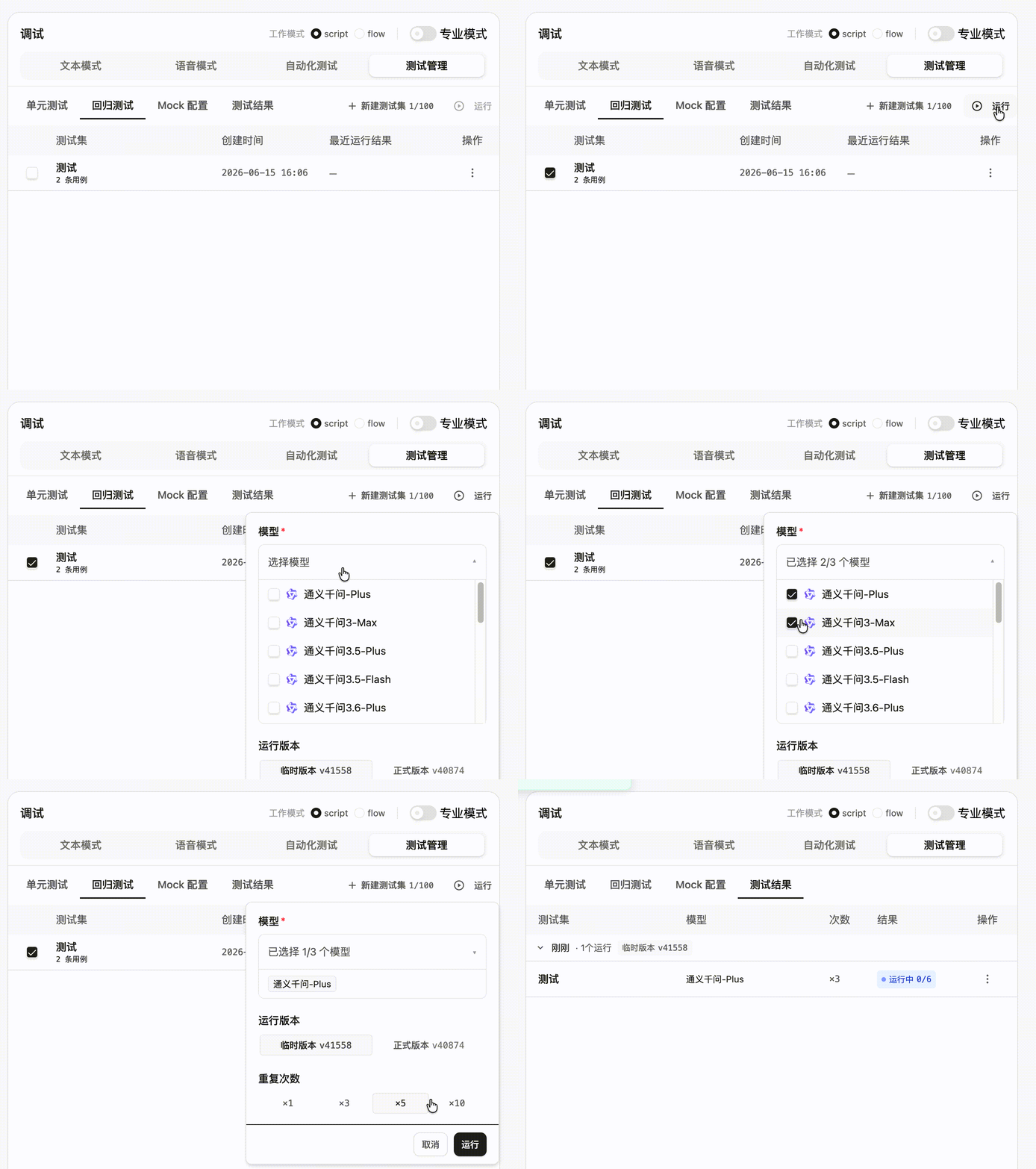
In Test management, select test sets under unit tests or regression tests, then click Run in the upper-right corner. Configure the model and repeat count, then start the test. The running status and results are shown in the list.
Review Test Results
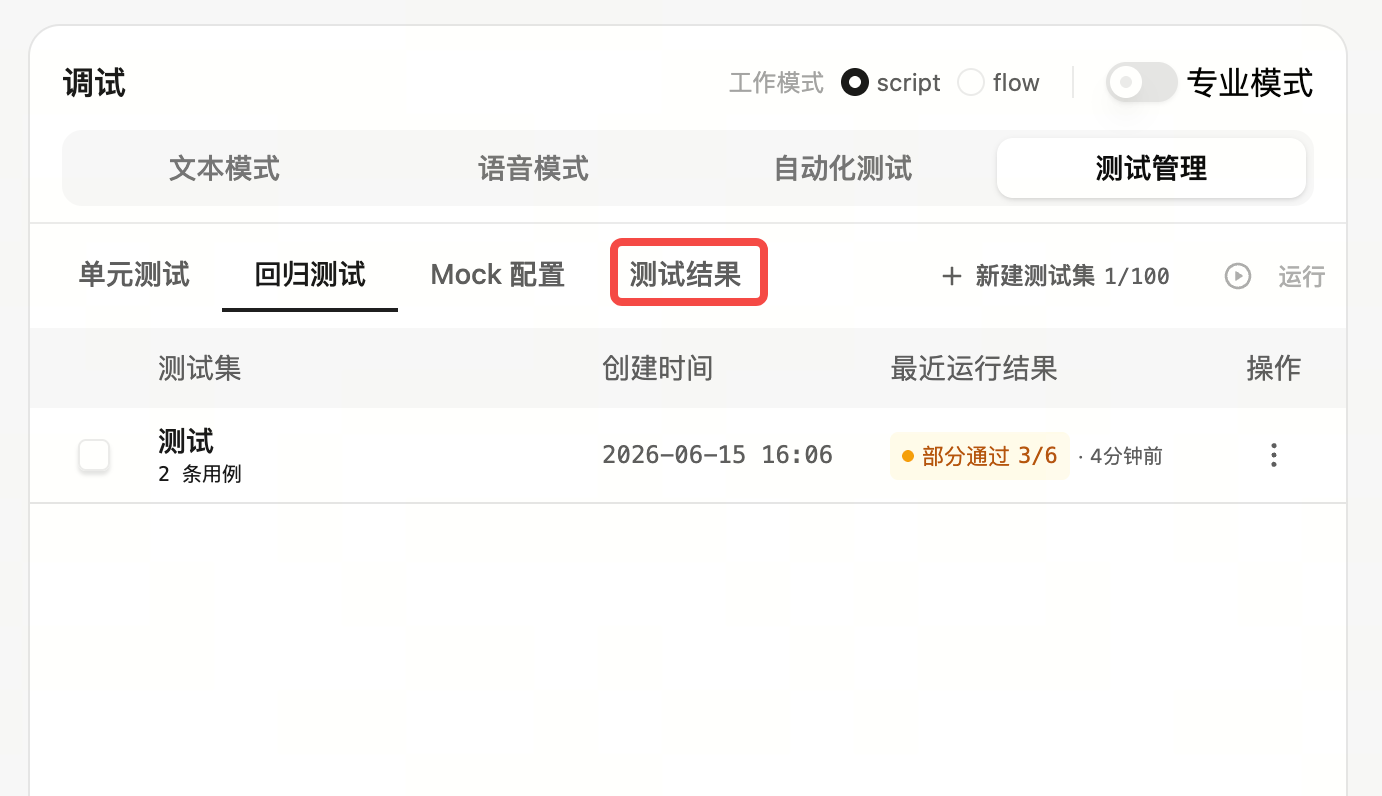
After the test is complete, go to Test management → Test results.
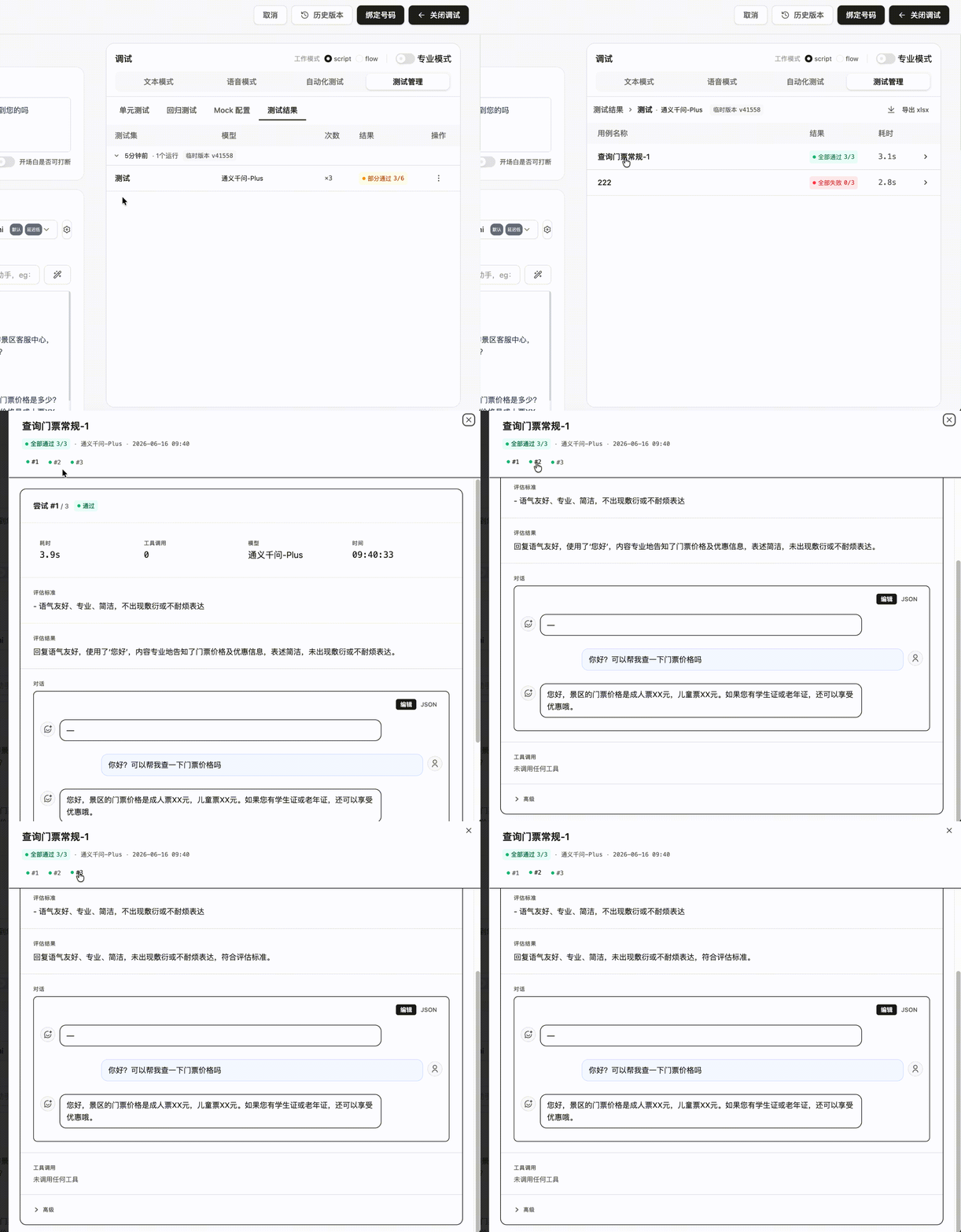
On the test results page, click a test set result to enter the test case result list and view multi-run results for each case.
Advanced: Mock Configuration
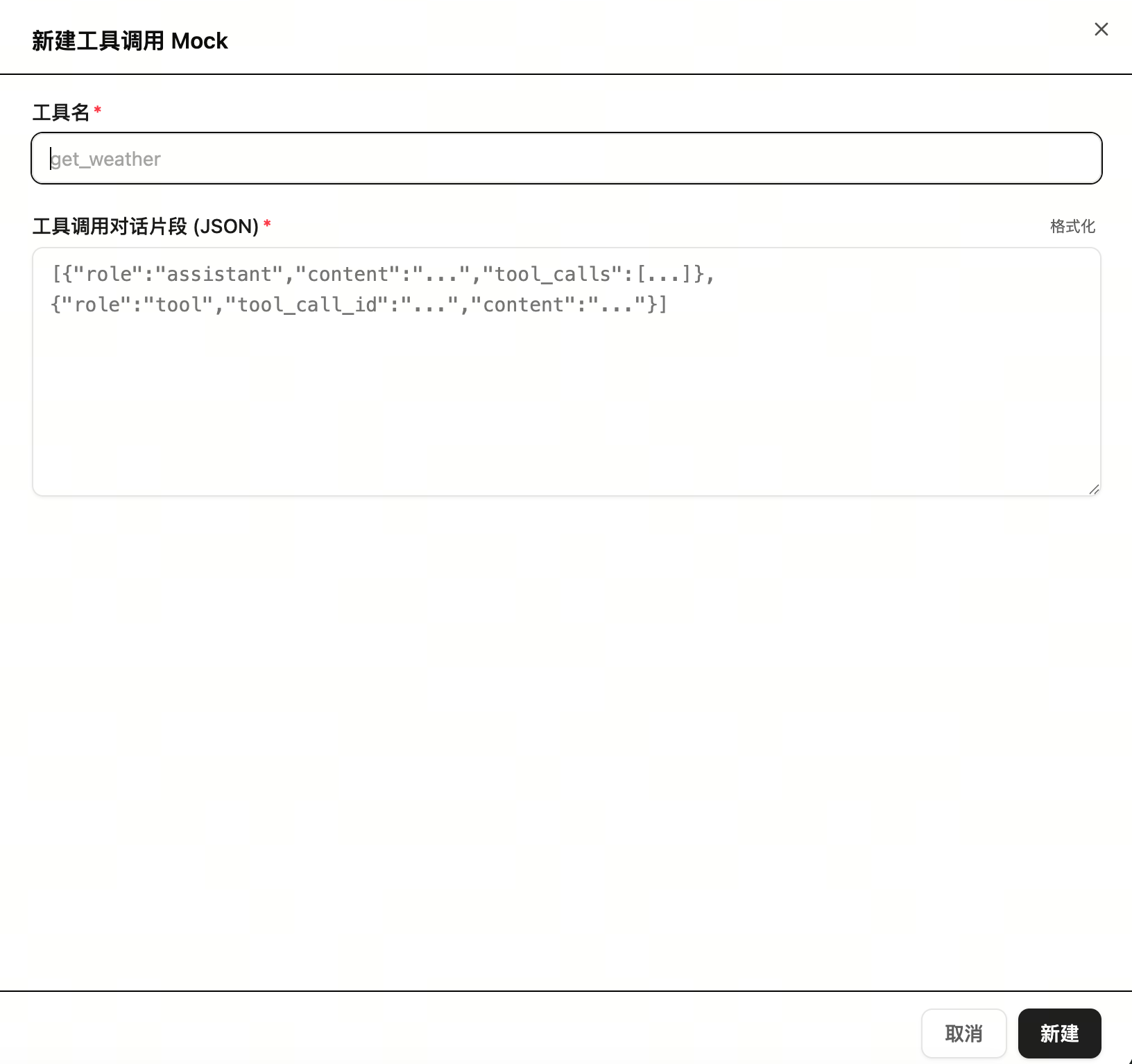
If you have not configured real assistant tools, you can use Mock configuration to create virtual tools and returned content. This helps simulate tool-calling behavior in a real environment.
Path: Test management → Mock configuration.
Click New Mock, then enter the tool name and virtual tool-calling JSON to create a Mock configuration.
Passing Criteria
- Test sets and test cases are created successfully.
- Test tasks can run normally and generate test results.
- You can view multi-run results for each test case.
- High-frequency questions, exception flows, and edge cases are handled as expected.
- Failed cases can be traced back to prompts, knowledge bases, workflows, tool configuration, or judging criteria.
Next Steps
- If a test fails, adjust the related configuration in Create and configure an assistant, Create a workflow, or Chunk management.
- If the tests pass and you are ready to launch, continue to Launch overview.
- If the assistant is already live and you need to review real call performance, see Call logs and AI insights.
FAQ
When should I use automated batch testing?
Use it before launching an assistant, after prompt changes, after knowledge base updates, after workflow adjustments, or after tool configuration changes.
If one-off debugging passed, why do I still need automated batch testing?
One-off debugging only validates a small number of questions. Automated batch testing can validate multiple scenarios at once, making it better for finding regressions and edge cases.
Can I test tool calling without configuring real tools?
Yes. You can use Mock configuration to simulate tools and returned content, then validate how the assistant behaves in tool-calling scenarios.
Can AI-generated variants be used directly?
We recommend reviewing them manually before use to ensure the conversation content, business boundaries, and judging criteria match your testing goal.