
Create and configure an assistant
Creating an assistant is a key step before launching an AI phone service. You can start from a template and then configure the assistant in the workspace.
Before configuration
- Sign in to the workspace.
- Make sure your account can manage assistants.
- Prepare the business scenario, greeting, prompt draft, and knowledge materials.
Create, name, and configure
Create an assistant
Path: Left sidebar → Assistant → New assistant.
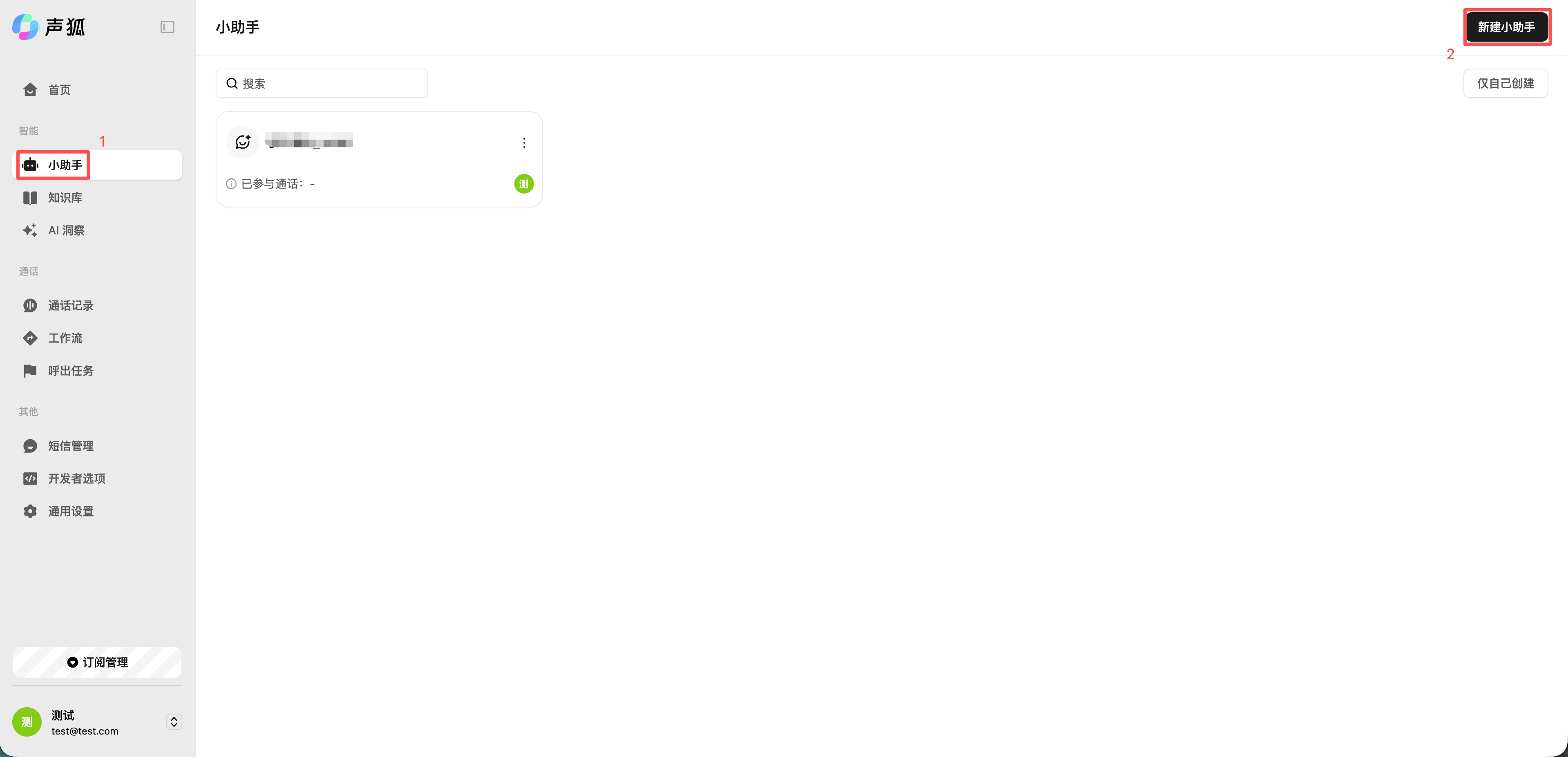
Select a template
Choose a template that matches the scenario. Templates may include preset prompts, voice settings, and flow configuration.
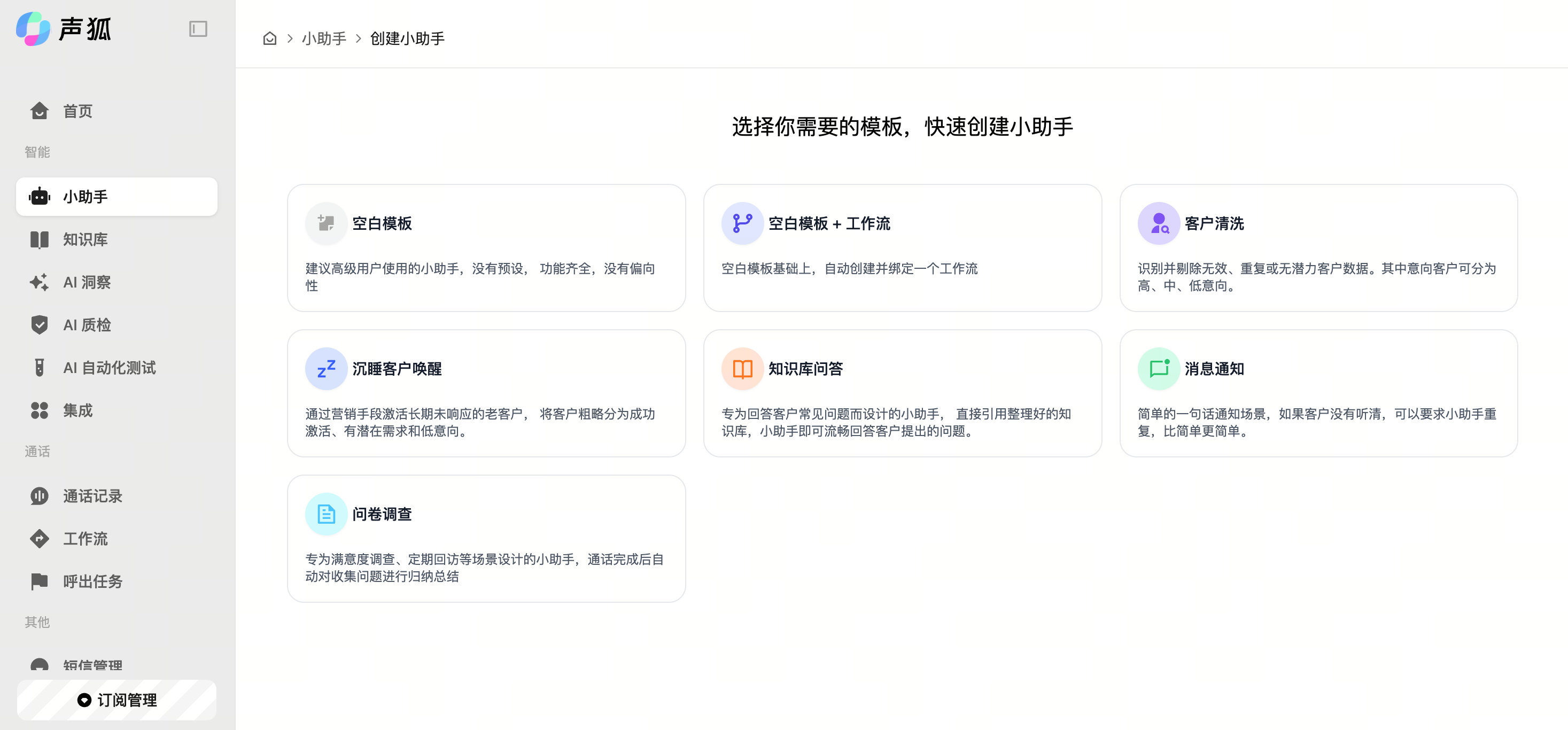
Rename the assistant
Click the default name in the upper-left corner. Use a “scenario + purpose” naming convention, such as “Clinic appointment confirmation assistant”.
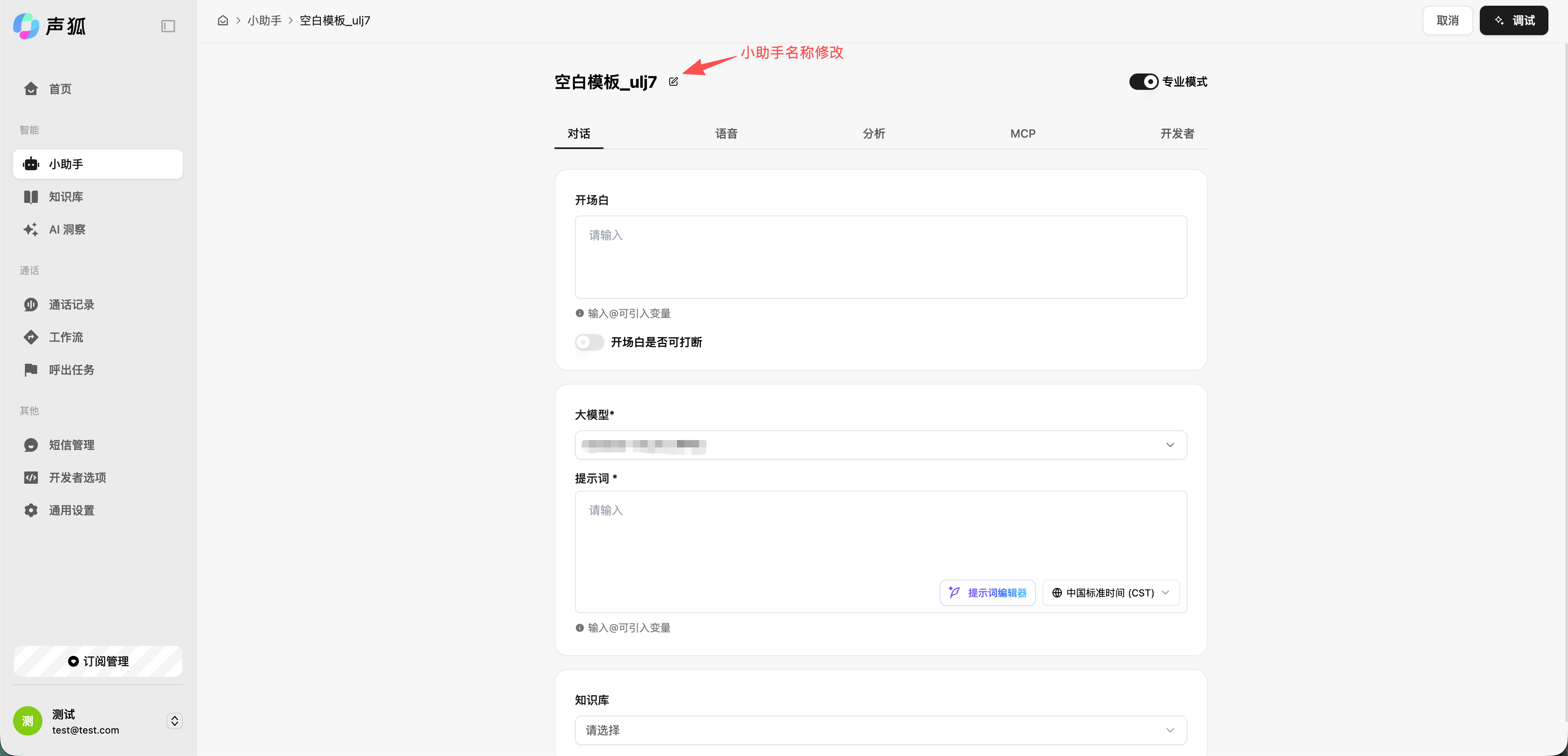
Feature details (table)
The assistant currently supports the following configuration items:
| Module | Feature | Description |
|---|---|---|
| Core features | Greeting | Configure the first sentence played at the start of a call. It helps the assistant state its identity, explain the service scope, and guide users to describe their needs. It applies to customer service reception, business consultation, after-sales repair, appointment registration, and similar scenarios. |
| Interruptible greeting | Set whether users can interrupt the AI while the greeting is being played. When enabled, users can express their needs earlier, reducing waiting time and improving real phone conversation fluency. | |
| Variable reference | Reference user information, business fields, or system parameters in the greeting, prompt, and other text so the assistant can generate more personalized replies for different customers and scenarios. | |
| Model | Select the large language model used by the assistant to understand intent, generate natural-language replies, and support multi-turn reasoning. Choose a model based on business complexity, response speed, and cost requirements. | |
| Model settings | Further configure Top-P and temperature for the selected model, so enterprises can adjust response style, stability, and generation quality for customer service scenarios. | |
| Prompt | Define the assistant role, service scope, response rules, business process, and exception handling. The prompt determines how the AI customer service assistant understands questions, answers, asks follow-up questions, and transfers to a human agent. | |
| Prompt editor | Edit role settings, greeting scripts, frequently asked questions, business rules, and response boundaries to quickly build an AI phone service that matches your business process. | |
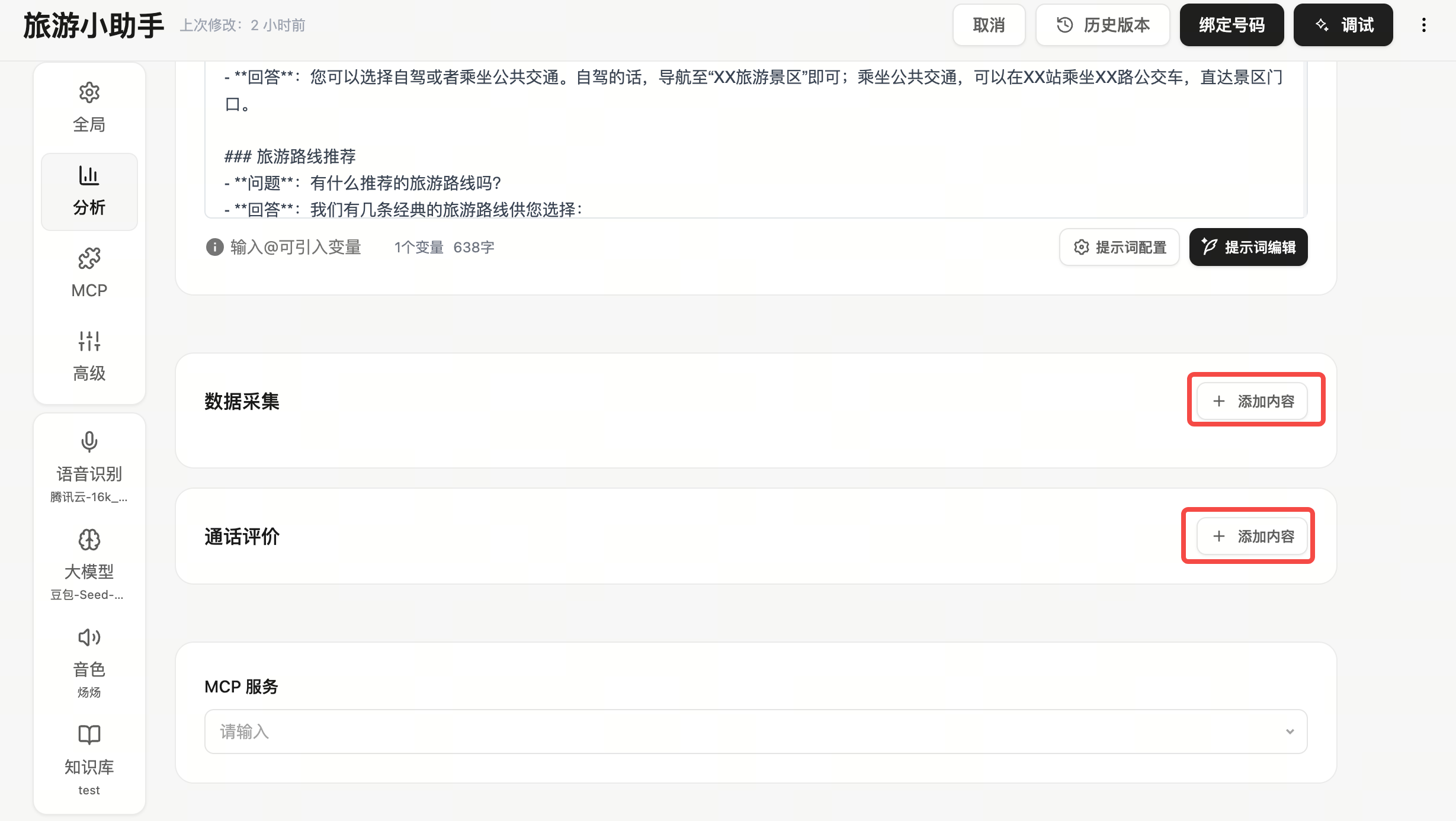
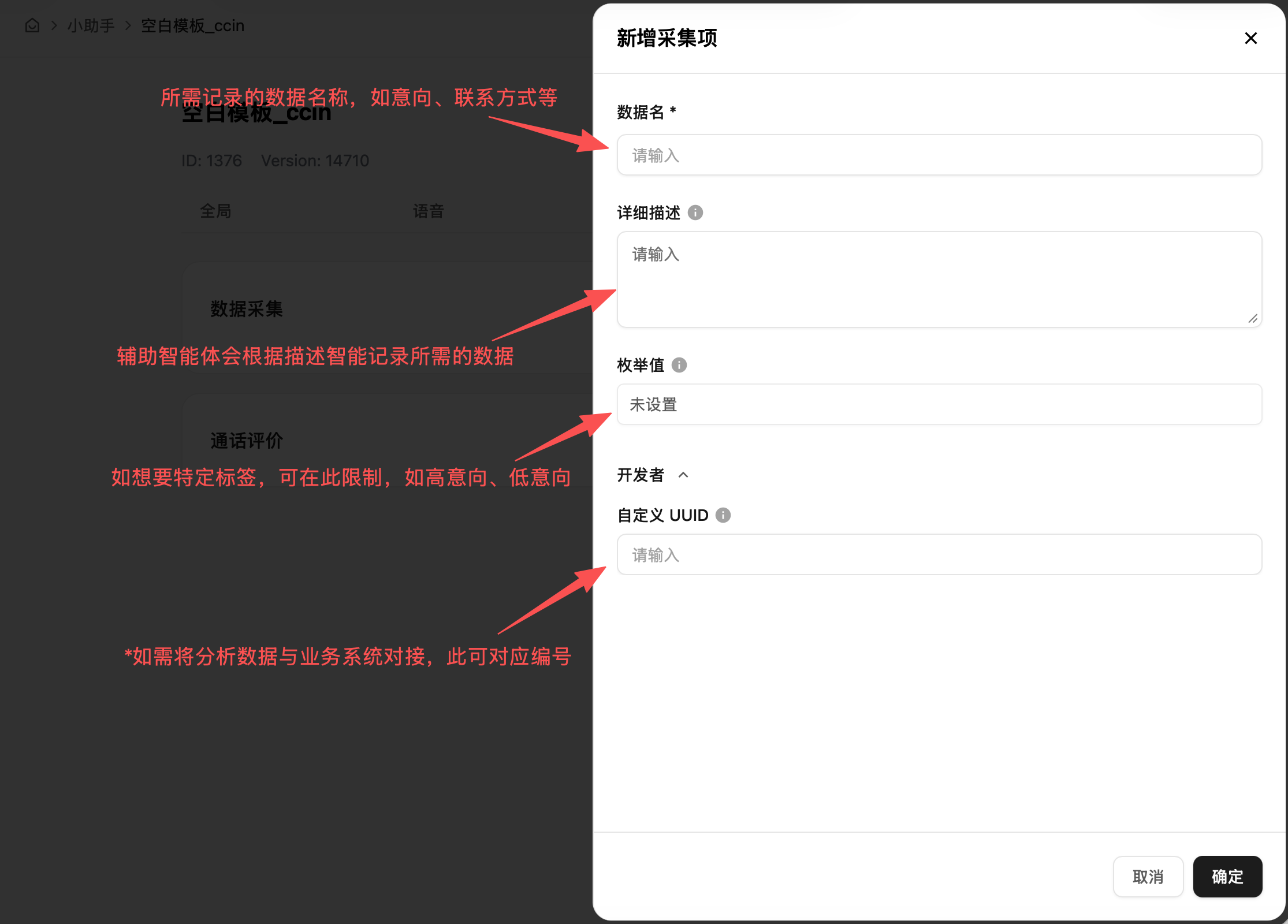
| Data collection | Data collection | Configure customer information or business fields to collect during calls, such as name, contact information, address, issue type, and appointment time. The AI can recognize and complete this information during the conversation and generate structured records. |
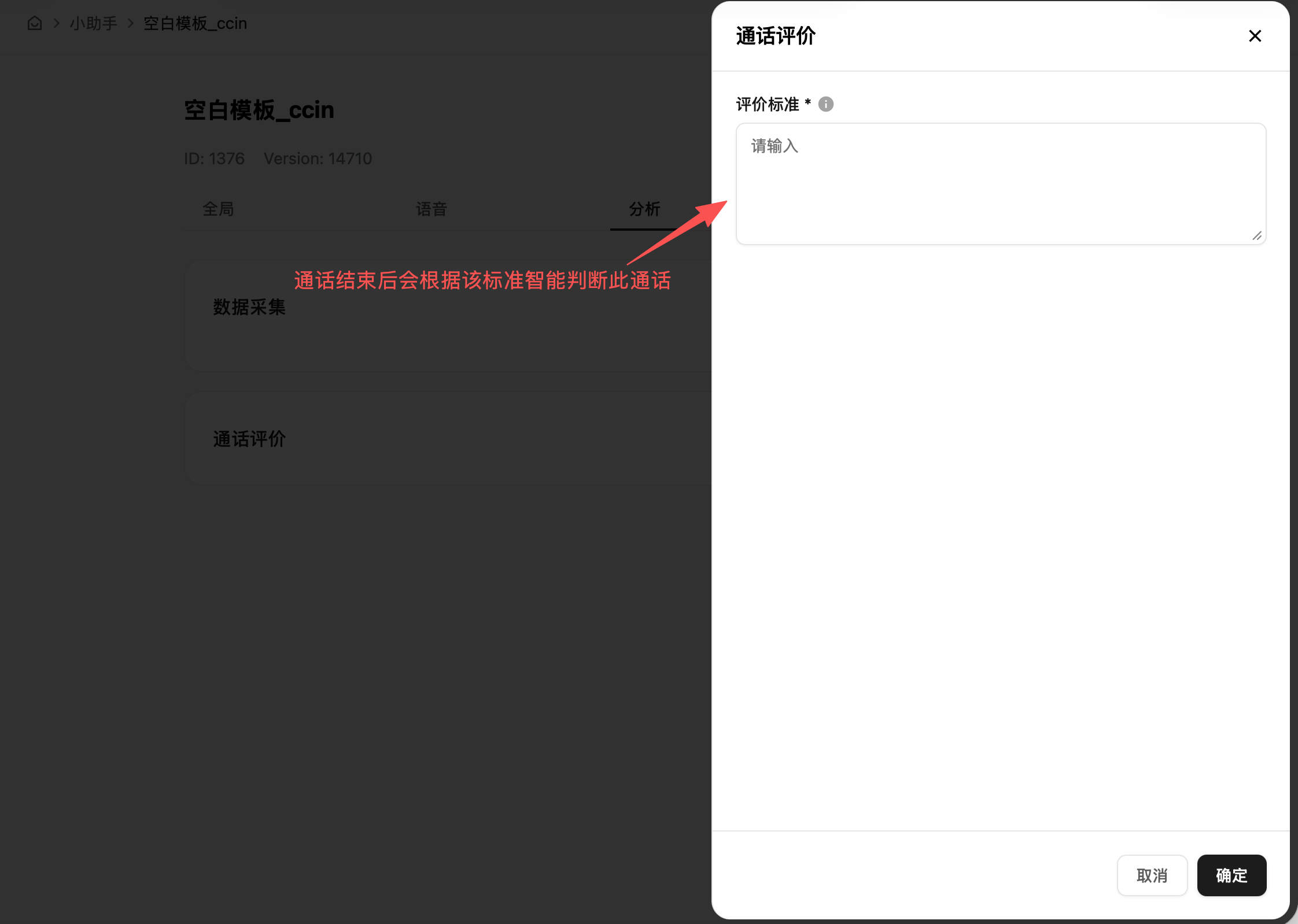
| Call evaluation | Customize evaluation questions or dimensions, such as satisfaction score, whether the issue was resolved, and whether human follow-up is required, so the enterprise can accumulate service quality data. | |
| MCP service | MCP service | Connect external tools or business systems, enabling the assistant to answer questions and call systems to query data, create tickets, register appointments, or synchronize information. |
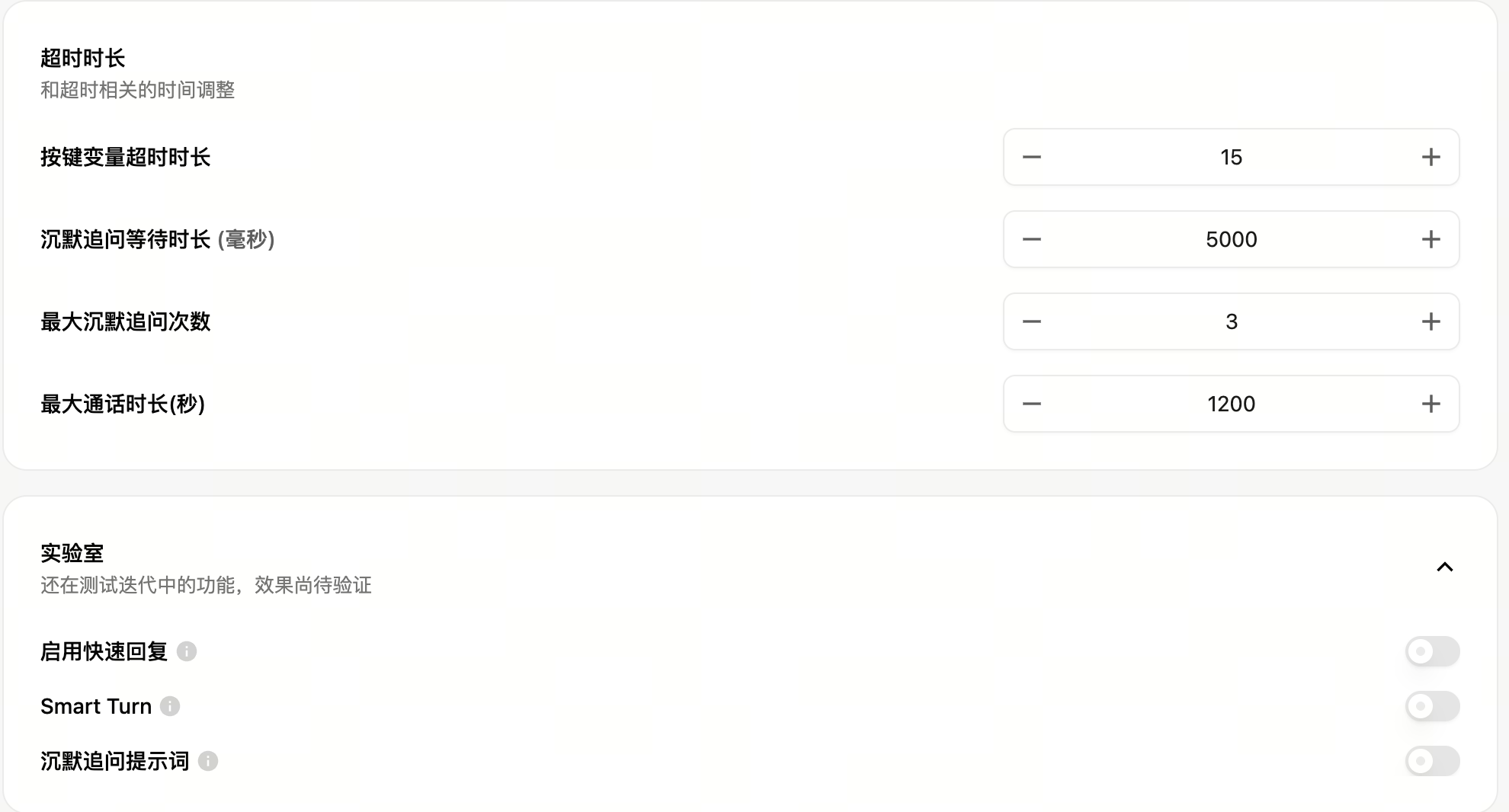
| Call timeout settings | Timeout duration | Configure waiting time, silence follow-up, and maximum call duration to control conversation rhythm and avoid long periods of no response or abnormal occupation of line resources. |
| Keypad variable timeout | Set how long the system waits when users enter variable information through phone keypad input. If no input is received within the configured time, the system can continue the flow or trigger exception handling. | |
| Silence follow-up wait time | Set how long the AI waits before asking a follow-up question or reminder when the user is silent. This reduces conversation interruptions caused by pauses, hesitation, or missed audio. | |
| Maximum silence follow-up count | Limit how many times the AI follows up when the user continues to be silent. After the limit is reached, the system can end the call, transfer to a human agent, or enter a specified handling flow. | |
| Maximum call duration | Set the maximum duration of a single call to help control line resources, service costs, and abnormal call risks. | |
| Lab | Fast reply | When enabled, the assistant can generate and play replies faster. It is suitable for high-frequency Q&A, standard consultation, and inbound scenarios that require fast responses. |
| Smart Turn | Intelligently determine whether the user has finished speaking, reducing premature interruptions or excessive waiting so multi-turn voice interaction is closer to a human customer service conversation. | |
| Silence follow-up prompt | Configure the AI's follow-up wording when the user remains silent, such as “Are you still there?” or “You can continue describing your request.” This improves call continuity and user experience. | |
| Knowledge base | Knowledge base | Connect enterprise knowledge content to the voice AI customer service assistant. By selecting a knowledge base and configuring recall threshold, recall count, and RAG enhancement parameters, enterprises can control which knowledge the AI references, how much it references, and how it combines retrieval with context. |
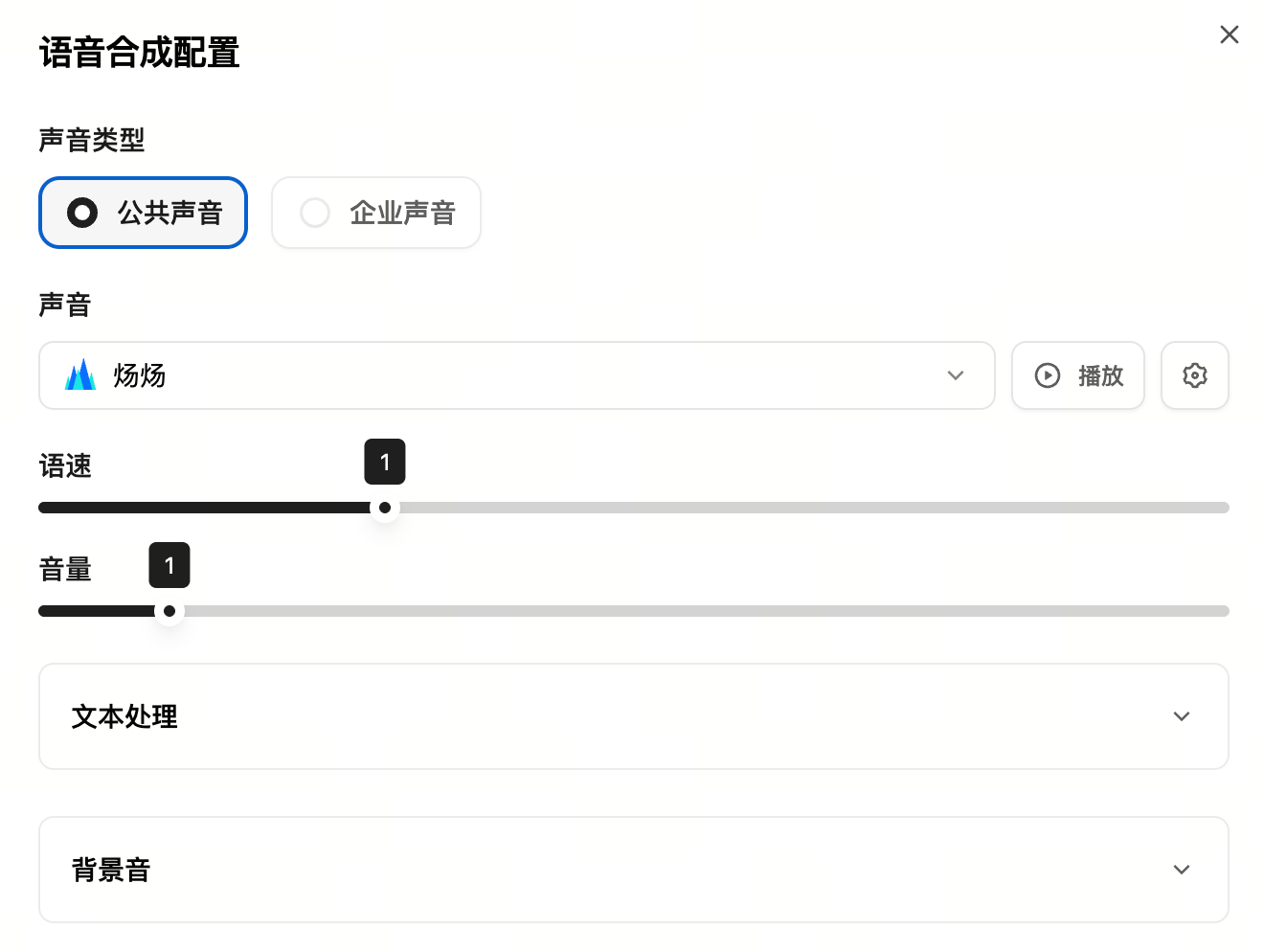
| Speech synthesis | Voice | Configure the voice used for outbound or inbound calls. You can choose public voices or enterprise voices, and adjust preview, speed, volume, and other settings. Select a voice based on service scenario, brand tone, and user group so the AI customer service voice sounds natural, stable, and aligned with the business image. |
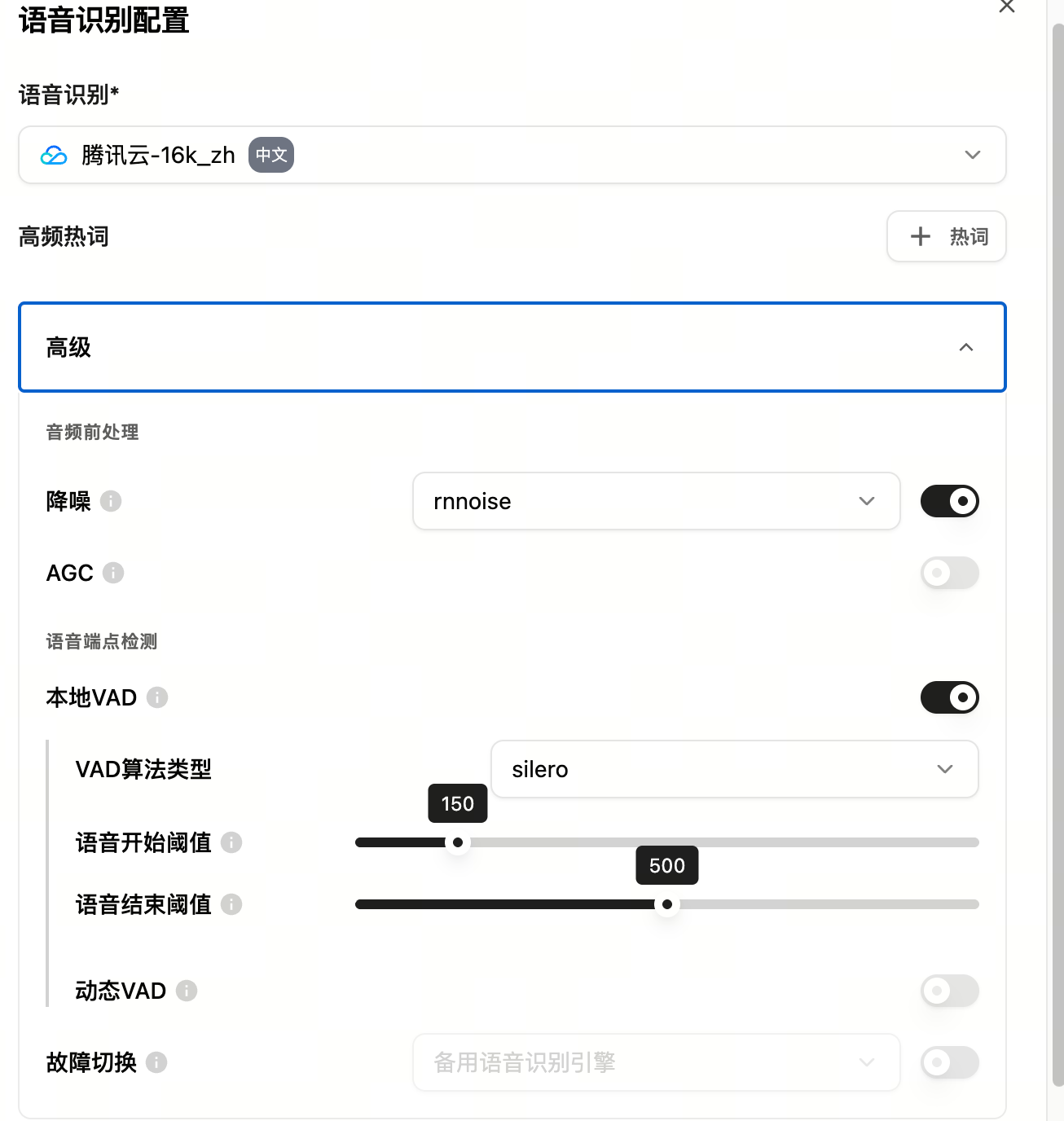
| Speech recognition | Speech recognition | Configure the speech recognition engine and related parameters to transcribe caller audio into text in real time for the model to understand intent and generate replies. You can configure hot words, noise reduction, voice activity detection, and other capabilities to improve recognition accuracy for spoken expressions, domain-specific terms, and complex call environments. |
Configure core capabilities
Core capabilities include greeting, model, and prompt. These settings decide how the assistant starts a call, understands requests, and follows business rules.
Greeting
The greeting is the first sentence played at the start of a call. It should clearly state the assistant identity, service scope, and what the user can ask.
Model
The model understands user intent, generates natural replies, and supports multi-turn reasoning. Customer service scenarios should prioritize stable and consistent answers.
Prompt
The prompt defines the assistant role, service scope, response rules, business process, and exception handling.
Configure speech recognition
Speech recognition converts caller audio into text. Configure recognition engine, hot words, and advanced parameters according to the call scenario.
Configure speech synthesis
Speech synthesis turns AI replies into audio. Configure voice type, voice, speed, volume, text processing, and background sound.
Configure data analysis
Configure fields to collect during calls, such as intent or contact information. You can also describe call evaluation criteria in natural language.
Configure knowledge base
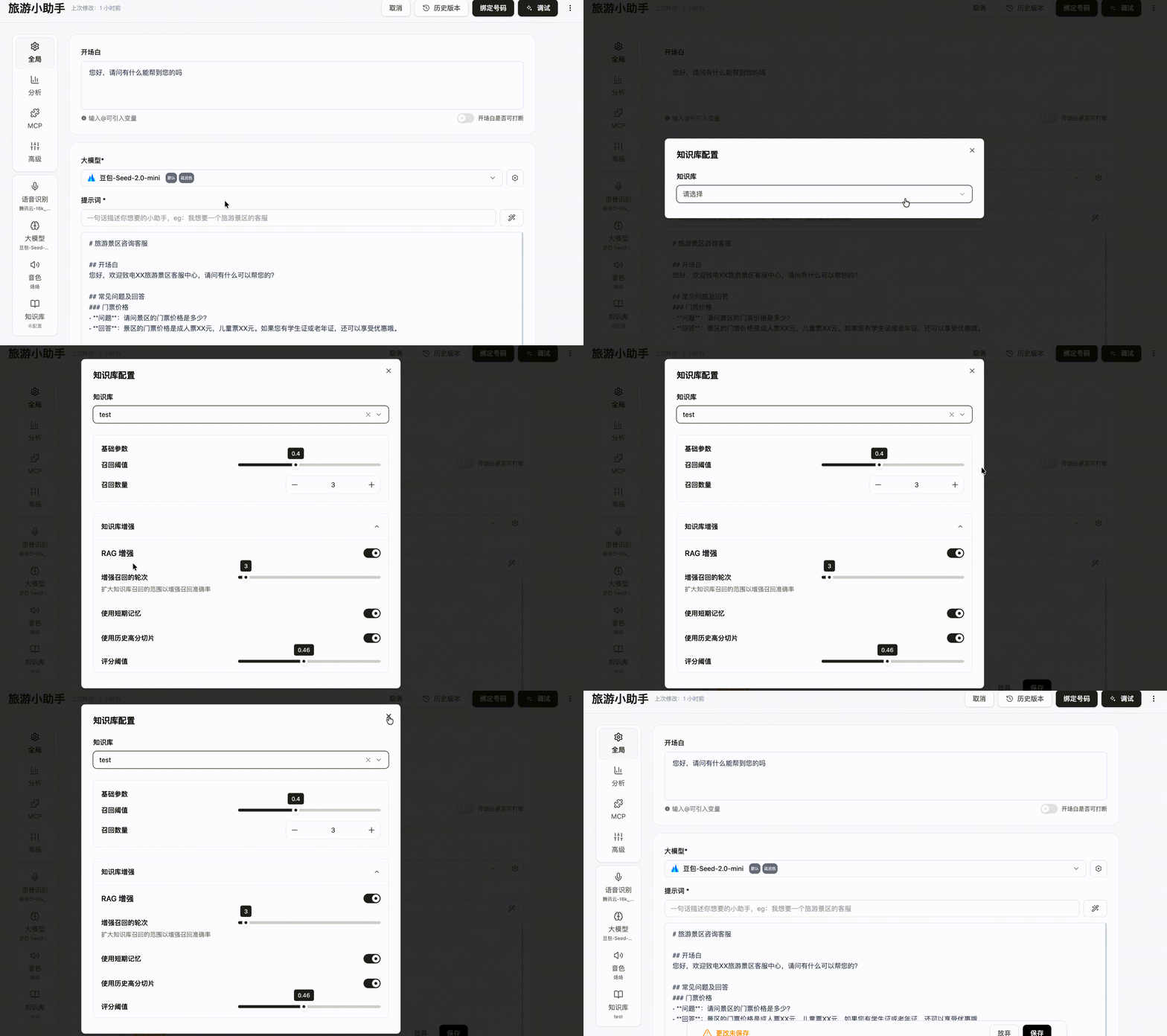
Open Knowledge base in the assistant settings, select the target knowledge base, check parameters, and save.
Knowledge base parameter settings (table)
| Feature | Description |
|---|---|
| Knowledge base selection | Select the knowledge base that the current voice assistant should call from the knowledge bases already created. Enterprises can configure different knowledge sources for different assistants based on business line, product type, or service scenario. |
| Recall threshold | Set the similarity threshold for recalling knowledge base content. A higher threshold requires stronger relevance between recalled content and the user question; a lower threshold expands the recall range and is suitable for non-standard or highly conversational questions. Avoid setting the value too low or too high. |
| Recall count | Set how many pieces of content are recalled from the knowledge base for each user question. A higher count provides more reference information; a lower count improves response speed and reduces interference from unrelated knowledge. |
| RAG enhancement | When enabled, the system uses retrieval-augmented generation to match and combine the user question with knowledge base content more fully, making AI answers closer to enterprise knowledge and reducing free-form or biased model output. |
| Enhanced recall turns | Set the maximum number of conversation turns used for contextual retrieval. Based on knowledge base recall, the system can add retrieval from the previous n turns of user conversation, expanding knowledge coverage for complex questions that require contextual support. |
| Use short-term memory | When enabled, the AI uses context from the current call for knowledge base retrieval and answering. For example, if the user has already mentioned a product model, issue, or business type, the system can use that information to understand follow-up questions. |
| Use historical high-scoring chunks | When enabled, the system can prioritize knowledge chunks that performed well historically, improving answer stability for high-frequency questions and standard Q&A scenarios while reducing the impact of low-quality or less relevant content. |
| Score threshold | Set the quality or relevance threshold for knowledge chunks entering the enhanced answer flow. A higher threshold favors high-confidence content; a lower threshold covers more potentially relevant content and is suitable when knowledge is distributed across multiple expressions. Avoid setting the value too low or too high. |
Configure advanced settings
Advanced settings help optimize interruption, audio preprocessing, timeout, and call experience. Adjust them after identifying a concrete issue, then test with real calls.
Effective scope
Existing outbound tasks usually keep the assistant configuration from task creation time. To apply new settings, create a new task or follow the product release mechanism.
Next steps
- If business knowledge is not ready yet, continue with Create and import a knowledge base.
- If the assistant is configured, run Text/voice testing.
- If testing passes and you are ready for outbound calling, continue with Create an outbound task.
- If replies or voice experience are abnormal, open Troubleshooting.